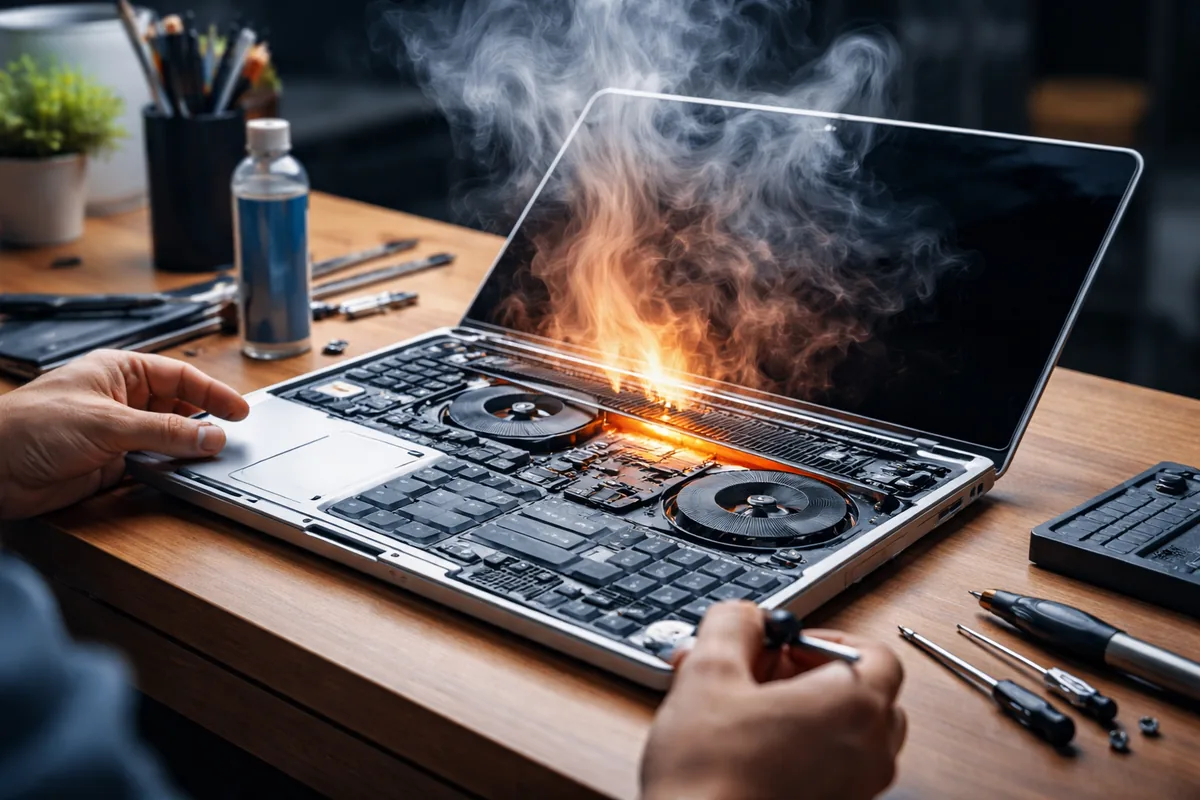
Laptop overheating can significantly impact performance and lifespan. To troubleshoot and resolve overheating issues, first ensure proper ventilation and cooling systems are functioning correctly, consider cleaning the internal components, and monitor resource usage closely.
Understanding laptop overheating
Overheating in laptops is often caused by excessive heat generated during intensive tasks. The majority of laptops utilize fans and heat sinks to dissipate this heat. When these systems are obstructed or overloaded, the internal temperature can rise, leading to performance throttling and potential hardware damage. Key signs of overheating include sudden shutdowns, decreased performance, and noise from the cooling fans.
Checking the cooling system
The cooling system is critical for maintaining optimal temperatures within your laptop. Start by inspecting the fan operation. Ensure that fans are clean and free of dust, which can impede airflow. Dust buildup is a common cause of inefficiency in cooling systems. Additionally, verify that the laptop is placed on a hard, flat surface to allow adequate air intake. Using it on soft surfaces like beds or couches can block vents. If the fan is malfunctioning, consider replacing it to restore proper performance.
Cleaning the laptop components
Regular maintenance includes cleaning the internal components of your laptop. First, power down the device and remove the battery if possible. Use compressed air to blow out dust from vents and fans gently. Be sure to direct the air away from delicate components. Cleaning thermal paste from the CPU and GPU, followed by the application of new thermal paste, can significantly improve heat transfer efficiency and lower operational temperatures.
Monitoring resource usage
Excessive resource usage can lead to overheating. Use task manager tools (like Windows Task Manager or Activity Monitor on Mac) to monitor CPU and GPU percentages. Check for programs consuming high CPU or memory, which could induce thermal strain. Close any unnecessary applications or processes running in the background. Sometimes, a specific application can cause overheating due to inefficiencies in coding, requiring alternatives or updates.
Utilizing laptop cooling pads
Laptop cooling pads enhance airflow and provide additional cooling to devices. These pads have built-in fans that increase air circulation beneath the laptop. When selecting a cooling pad, choose one that matches your laptop size for optimal coverage. Cooling pads can be particularly beneficial during gaming or resource-heavy tasks.
| Cooling pad brands | Features |
|---|---|
| Cooler Master | Adjustable fan speed, ergonomic design |
| Deepcool | LED lighting, quiet operation |
| Thermaltake | Multiple fan sizes, USB powered |
Upgrading the hardware
In some cases, hardware upgrades can alleviate overheating issues. Increasing the amount of RAM can ensure your laptop runs more smoothly, reducing strain during intensive tasks. Additionally, upgrading to an SSD can improve read and write speeds, which could decrease load times and resource fatiguing during high usage scenarios. However, ensure your laptop supports these upgrades before proceeding.
Using software solutions
There are various software solutions available to manage CPU activity and reduce overheating. Tools like CPU Throttle or SpeedFan allow you to monitor and control your laptop's fan speeds, providing options to activate higher speeds during peak use. Such software can help maintain lower temperatures, especially during graphics-intensive tasks.
Understanding the environment
Lastly, consider the environmental factors affecting laptop temperature. High ambient temperatures can elevate laptop temperatures. Ensure the workspace is well-ventilated and at a comfortable room temperature. Avoid direct sunlight exposure to the laptop as this can exacerbate heating problems. Keeping your laptop in a cool environment can sustain optimal operating temperatures.
FAQ
What causes laptop overheating?
Laptop overheating is typically caused by dust in the cooling system, excessive resource usage, or environmental factors.
How can I clean my laptop's fan?
Use compressed air to blow out dust from the fan while the laptop is powered off for safe cleaning.
Do cooling pads actually work?
Yes, cooling pads can help lower laptop temperatures by improving airflow and providing additional cooling during use.
How often should I clean my laptop?
Cleaning your laptop should be done every few months or more frequently if used in a dusty environment.
Is upgrading my laptop's hardware a good solution?
Yes, hardware upgrades like increasing RAM or switching to an SSD can help improve performance and reduce overheating.

Jordan Riley
Tech writerJordan is passionate about demystifying technology for everyday users. She enjoys writing about the latest trends in computing.