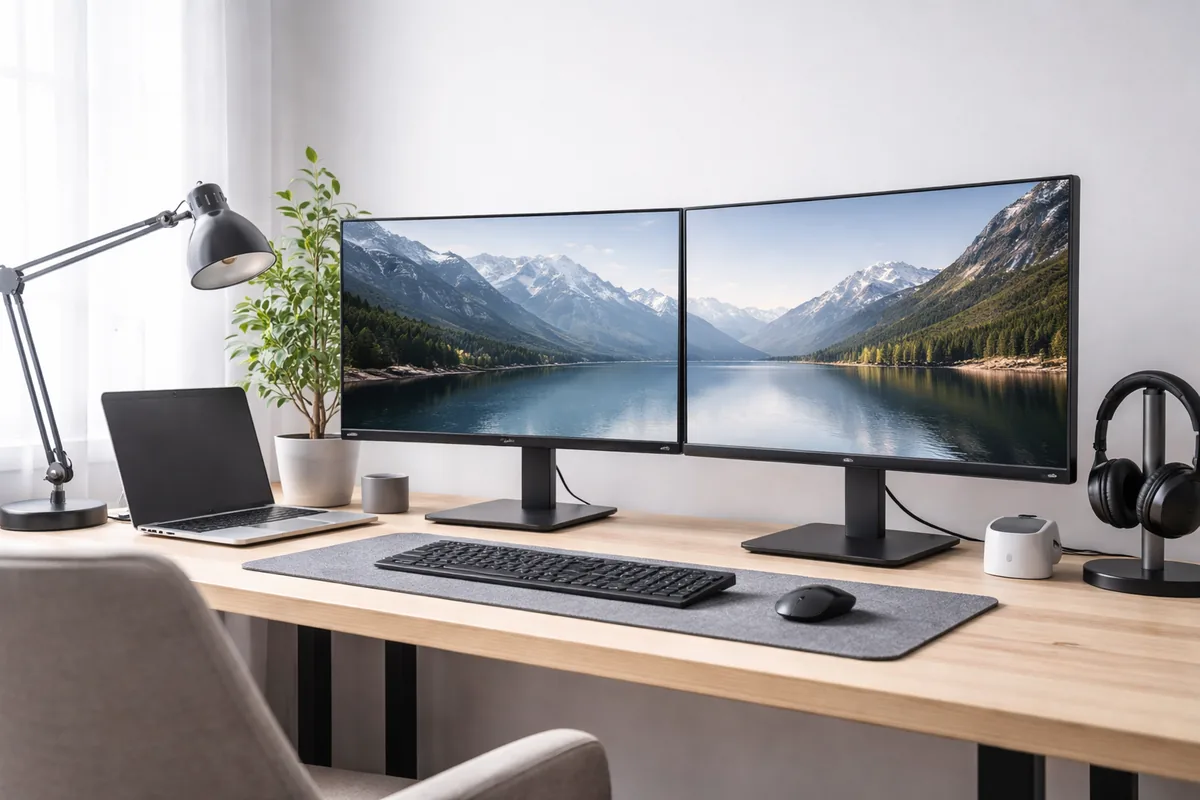
Setting up a dual monitor workstation effectively can significantly boost your productivity and workflow. By doubling your screen space, you can multitask efficiently, improve organization, and streamline your tasks. Here’s how to do it right.
Choosing the right monitors
When selecting monitors for your dual setup, consider size, resolution, and compatibility. Ideally, choosing monitors of the same size and resolution can provide a seamless visual experience. A common configuration is two 24-inch displays, offering ample screen real estate without overwhelming your space. Ensure that both monitors have similar color calibrations for uniformity in image quality.
Hardware requirements
Before you begin your setup, assess the hardware requirements. Your computer must have the necessary outputs to connect two monitors. Common outputs include HDMI, DisplayPort, and DVI. Check if your graphics card supports dual display setups; specialized cards often list this feature in their specifications. If your hardware falls short, you may need an adapter or an upgraded graphics card.
Proper physical arrangement
The arrangement of your monitors plays a critical role in comfort and usability. Place them at eye level to reduce neck strain. The monitors should be about an arm's length away; this distance varies based on personal comfort and monitor size. If your desk space allows, angle the monitors inward slightly to decrease the distance and make it easier to view both screens. A dual monitor stand can help organize your workspace effectively, providing stability and freeing up surface space.
Configuring display settings
Once the monitors are physically set up, it's time to adjust the display settings. On Windows, right-click on the desktop and select 'Display settings.' Here, you can arrange the displays to match their physical layout. You can choose to duplicate or extend the display; the latter option allows you to use the monitors as one large screen. On macOS, go to 'System Preferences' then 'Displays' to adjust the settings accordingly. Make sure to set the resolution and orientation for each monitor to optimize your viewing experience.
Using software for productivity
Leveraging software tools can further enhance the dual monitor experience. Applications like DisplayFusion and UltraMon offer robust management features, such as customizable hotkeys for easier navigation between windows. Consider using virtual desktops to organize your workspaces better. This feature allows you to group applications and windows that pertain to specific tasks, making it easier to focus on one project at a time. Utilizing window snapping features, native to most operating systems, can also streamline your multitasking capabilities.
Maintaining proper ergonomics
It's essential to be mindful of ergonomics when setting up your dual monitor workstation. Be sure to invest in a good chair that supports your back while promoting good posture. The height of the monitors should be adjusted so that the top is at or just below eye level. This setup minimizes strain on the neck and eyes. Additionally, maintain a comfortable distance of about 20 to 30 inches from your eyes to the screens. Utilizing anti-glare screens can also reduce eye strain during prolonged usage.
Example configuration
| Component | Specifications |
|---|---|
| Monitor Size | 24-inch |
| Resolution | 1920 x 1080 |
| Refresh Rate | 60Hz |
| Connectivity | 2 x HDMI, 1 x DisplayPort |
| Stand Type | Dual monitor stand |
Managing cables and organization
Efficient cable management is crucial to maintaining a clean and organized workstation. Use cable ties or sleeves to bundle and organize the cables behind your monitors. Some dual monitor stands come equipped with built-in cable management solutions to hide the clutter. Accessibility is also important; ensure that the power supply and any other essential connections are easy to access for troubleshooting and adjustments.
Testing and adjustments
After setting up your monitors and configuring the settings, it is beneficial to test your dual monitor setup. Launch multiple applications and monitor how they behave across the screens. Make any necessary adjustments to the resolutions and display settings. Regularly evaluate your workspace ergonomics to ensure comfort and productivity as your work habits evolve.
FAQ
Do I need a specific graphics card for dual monitors?
Yes, your graphics card should support multiple displays. Check the specifications to confirm valuable output connections and support for dual monitors.
Can I use different size monitors for a dual setup?
While it is possible to use different sized monitors, it's recommended to use the same size and resolution for the best visual experience and seamless usability.
What are some best practices for cable management?
Use cable ties, sleeves, or adhesive clips to bundle cables together and secure them against your desk or wall to keep your workspace tidy.
How can I improve ergonomics in my dual monitor setup?
Ensure monitors are at eye level, maintain an arm’s length distance, and invest in an ergonomic chair to promote better posture and minimize strain.
What software can help manage multiple monitors efficiently?
Tools like DisplayFusion or UltraMon can help manage multiple monitors by providing features like window snapping, hotkeys, and easily customizable settings for improved productivity.

Jordan Riley
Tech writerJordan is passionate about demystifying technology for everyday users. She enjoys writing about the latest trends in computing.